
Highlighting text is a crucial task when reviewing or annotating documents in Foxit PDF Editor. Whether you’re working with legal, academic, or professional documents, highlighting allows you to emphasize important information for easy reference.
Foxit provides several tools to highlight text effectively, whether you’re working with standard PDFs or scanned files. This article will explore everything you need to know about highlighting text in Foxit PDF Editor, including using the standard highlight tool, handling non-selectable text, and working with advanced features such as the area highlight tool.
Highlighting text in Foxit PDF Editor helps you keep track of important points and organize your documents. The process is straightforward, but it offers a variety of customization options. With the flexibility of Foxit’s features, you can easily highlight specific text, adjust the color, and even annotate scanned documents. Read for more details!
Understanding the Highlight Tool in Foxit PDF Editor
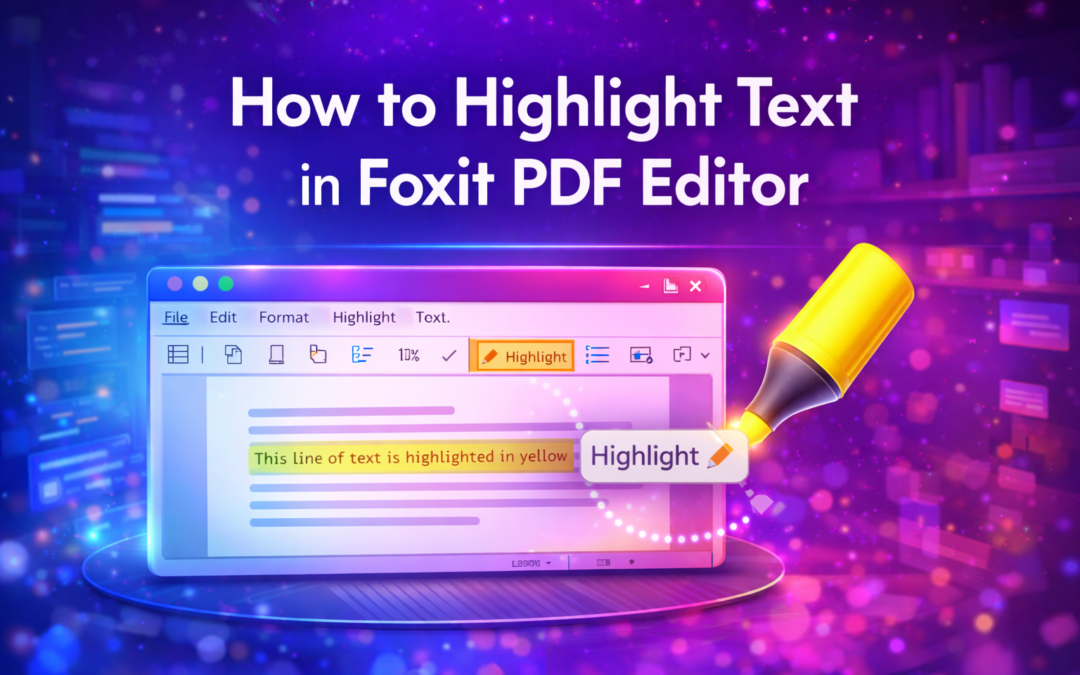
The highlight tool in Foxit PDF Editor is one of the most popular features, enabling users to highlight text within PDF files. To begin, simply open your document, select the “Highlight” button from the toolbar, and drag your cursor over the text you wish to emphasize. This basic function helps you pinpoint crucial content and make it stand out for easy reference.
One great feature of the highlight tool is its customization options. You can adjust the color of the highlights to fit your preference, ensuring your document is visually organized. The Properties toolbar provides easy access to color adjustments, letting you choose a high-contrast color for better readability or a subtle shade for a more professional look.
Highlighting Non-Selectable Text in Foxit PDF Editor
Highlighting non-selectable text, such as text in scanned images or OCR-unreadable files, can be difficult. However, Foxit PDF Editor provides a solution by using Optical Character Recognition (OCR). With OCR, scanned documents can be converted into selectable and searchable text, allowing you to use the highlight tool on the newly recognized text.
If OCR is not applied, you can still visually highlight non-selectable elements using the area highlight tool. This tool lets you draw a rectangle around any content you wish to highlight, even if it’s not actual text. This method ensures you can still emphasize important parts of the document, whether it’s text or graphics.
You can easily paste unformatted text using a text editor, making it easier to format and organize your document.
Using the Area Highlight Tool for Enhanced Emphasis
The area highlight tool is a useful feature for highlighting larger areas of content or non-textual elements in your PDF. Unlike the standard highlight tool, which is limited to text, the area highlight tool allows you to select any rectangular area on the page and apply a highlight. This is particularly useful for emphasizing diagrams, tables, or sections with multiple elements.
You can adjust the highlight size by clicking and dragging the tool across the document, providing flexibility when marking content. The area highlight tool is an excellent addition to the standard highlight feature, providing a more organized and efficient way to mark important sections of the document.
Removing Highlights in Foxit PDF Editor
Sometimes, you may need to remove a highlight or clean up annotations in your PDF. Foxit PDF Editor makes this process straightforward. Simply click the highlighted area, then either press the Delete key or select the “Remove” option from the context menu to remove the highlight.
If you have multiple highlights across a document, you can manage them all in the Comments panel. This panel gives you an overview of all annotations, including highlights, and allows you to delete or modify them as needed. This feature makes it easy to tidy up your document once the review process is complete.
If you want to learn about different text editors and their functionalities, you can explore what a text editor is.
Highlighting with Comments and Annotations in Foxit
When highlighting text, adding comments can provide context to your highlights. Foxit PDF Editor allows you to add comments and annotations to highlighted areas, explaining why certain text is important or adding relevant notes. This feature is particularly useful in legal or academic documents, where providing additional information is often necessary.
To add a comment to your highlight, simply right-click on the highlighted text and choose “Add Note.” This functionality enhances collaboration, making it easy to share annotated PDFs with colleagues or clients while keeping track of key details.
Highlighting Multiple Texts at Once
Foxit PDF Editor enables you to highlight multiple sections of text at once, making the process more efficient when working with long documents. By holding down the Shift key, you can select and highlight multiple sections of text without having to repeat the process for each one. This is particularly helpful when reviewing documents with many important points scattered throughout.
Once you’ve selected multiple sections, you can highlight them all at once for a smoother workflow. This method is especially useful for legal, academic, or technical documents, where reviewing large amounts of information is common.
How to Highlight Text in Scanned Documents
If you’re working with scanned documents, highlighting text can be more complicated since the text is often part of an image and not selectable. However, Foxit PDF Editor provides a solution with its OCR feature. When you apply OCR to a scanned document, it converts the image into selectable text, which can then be highlighted just like any other text in the document.
For documents that still contain non-selectable text after OCR, you can use the area highlight tool to visually highlight sections. This flexibility ensures you can still emphasize the content you need, even in scanned documents.
Saving Your Highlights and Annotations
After highlighting text in your PDF, you will want to ensure that your changes are saved for future reference. In Foxit PDF Editor, highlights and annotations are saved as part of the document’s metadata. To save your work, simply click “File” and select “Save As” to keep your annotated document.
Foxit also lets you save the document with or without annotations, so you can share a clean version if needed. This feature is useful when working with multiple versions of a document or when collaborating with others who don’t need to see your annotations.
When working with text in PDF documents, understanding how to properly edit and format the text is crucial.
Sharing Documents with Highlights and Annotations
Once you’ve highlighted the important sections in your document, you may want to share it with others. Foxit PDF Editor allows you to share annotated PDFs easily, either by exporting the document with all annotations intact or sharing it via email or cloud storage. This makes it easy to collaborate with others while keeping track of your highlighted points.
Sharing documents with highlights and comments helps you maintain transparency and ensures that important information is communicated clearly. Whether you’re working in a team or sharing documents with clients, Foxit’s features make the process seamless.
Troubleshooting Common Highlighting Issues
If you’re facing difficulties with the highlight tool, there could be a few reasons why it’s not working as expected. One common issue is document restrictions that prevent text from being highlighted. In this case, you may need to adjust the document’s security settings or contact the document’s creator for permission.
Another issue arises when dealing with non-selectable text. Applying OCR can help make the text selectable and enable you to use the highlight tool. If these solutions don’t work, checking the Foxit support page for additional troubleshooting tips might provide further assistance.
Conclusion
Highlighting text in Foxit PDF Editor is a powerful feature that simplifies reviewing, marking, and annotating important information in your documents. Whether you’re working with regular text or scanned documents, Foxit provides versatile tools to help you stay organized and focused. By mastering the use of highlights, area highlights, and annotations, you can enhance your document review process, making it more efficient and professional.
For those who need to perform more advanced tasks, such as editing or formatting text, consider using the additional tools in Foxit PDF Editor. With its robust feature set, Foxit is an ideal choice for anyone looking to streamline document management.