
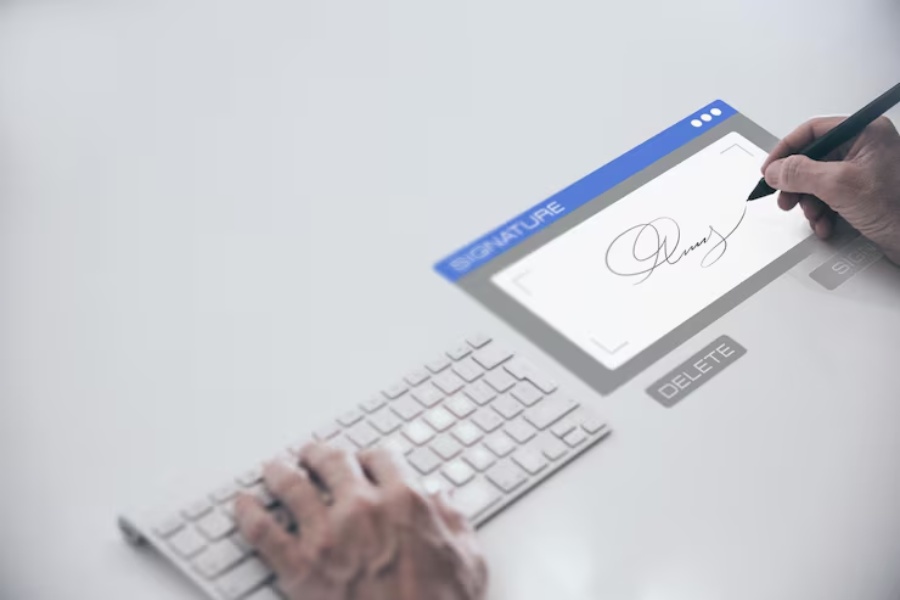
Signing a document on a MacBook does not usually require printing a page, signing it with a pen, and scanning it again. Apple’s Preview app includes built-in Markup tools that let you create a signature and place it directly on a PDF. Apple currently supports capturing a signature with the Mac trackpad, the Mac’s built-in camera, or an iPhone or iPad.
That makes How To Add Signature On Macbook? a practical question for students, remote workers, freelancers, business owners, and anyone who receives forms or agreements as PDFs. The process can take only a few steps once you know where Apple keeps the signature controls. For anyone learning how to use a signature macbook workflow efficiently, Preview also lets you select a captured signature, reposition it on the page, and resize it to fit the intended signature line.
The main challenge is that not every signing situation is identical. You may have a PDF that opens normally in Preview, a scanned form with no fillable fields, a document that already contains a dedicated signature area, or a file whose permissions limit changes. You may also prefer to draw your signature naturally on an iPhone or iPad rather than using a MacBook trackpad.
This guide explains How To Add Signature On Macbook? using macOS tools, including Preview, trackpad and camera capture, iPhone or iPad signing, placement, resizing, and troubleshooting.
What Should You Know Before Adding a Signature on a MacBook?
Before exploring How To Add Signature On Macbook?, identify the type of document you need to sign. Preview works particularly well with PDFs because its Markup toolbar includes a Sign tool designed for captured signatures. Apple also provides annotation and signature tools for supported images.
Start by saving a clean copy of the document. This gives you a backup if you place the signature in the wrong spot, accidentally annotate another area, or later need the unsigned version.
Next, open the PDF in Preview rather than assuming it is already using the right application. If the Markup toolbar is hidden, Apple instructs users to show it and then select the Sign button. Existing signatures can be selected there, while a new signature can be created using one of the available capture methods.
Think about how you want the signature to look. The trackpad is fast and paperless, while the camera method lets you capture handwriting from white paper. An iPhone or iPad can be more comfortable if you prefer signing on a touchscreen. Apple lists all three approaches as options for capturing a signature in Preview.
You should also distinguish a visible signature mark from a complete e-signature service. Preview can place your captured signature on the document, which works well for many routine PDF-signing tasks. A business process that requires multiple signers, authentication, automatic reminders, complex routing, or extensive workflow controls may benefit from dedicated e-signature software.
Finally, read the document before signing it. Confirm the final wording, dates, names, amounts, and signature location. Learning How To Add Signature On Macbook? solves the technical part of signing, but it does not replace reviewing what you are signing.
How To Add Signature On Macbook? Step by Step in Preview
For most PDF files, Preview provides a simple built-in method. Apple’s current Preview instructions say to open the PDF, display the Markup toolbar if necessary, and click the Sign button. From there, you can select an existing signature or create a new one.
- Open the PDF in Preview.
Locate your document in Finder and open it with Preview. If another application launches automatically, use the Mac’s Open With option and choose Preview. - Show the Markup toolbar.
If the annotation controls are hidden, click the Show Markup Toolbar button. Preview’s Markup features include tools for adding text, shapes, drawings, and signatures. - Click the Sign tool.
Select the signature icon. If you have already captured a signature, choose it from the available list. Otherwise, start creating a new signature. - Choose how to capture the signature.
Preview supports signature capture with the Mac trackpad, built-in camera, or an iPhone or iPad. - Insert the signature into the PDF.
Select the signature you created. It will appear on the document, where you can drag it to the correct location. - Resize the signature.
Apple’s Markup guidance allows a placed signature to be moved and resized using its handles. Keep it proportional and large enough to remain clear. - Review and save the file.
Inspect the signed page before you send it. Make sure the signature does not cover a printed name, date, checkbox, or important document text.
This method answers How To Add Signature On Macbook? for most everyday PDF situations. It keeps the workflow on your Mac and avoids the need to print and rescan routine documents.
Which Signature Method Should You Use on a MacBook?
If you are deciding How To Add Signature On Macbook?, Preview gives you several capture options rather than forcing you to draw with a mouse. The best choice depends on your handwriting, available devices, and the appearance you want. Apple officially supports trackpad, camera, and iPhone or iPad signature capture in Preview.
- Trackpad: This is useful when you want a quick, paperless option without another device. It may take more than one attempt if drawing a signature with your finger feels unfamiliar.
- Built-in camera: This method works well when you want to sign naturally with a pen. Apple instructs users to write the signature on white paper, hold it toward the camera, and align it with the blue line shown in the capture window.
- iPhone: A nearby iPhone can be convenient if signing directly on a touchscreen feels easier than using the MacBook trackpad. Apple supports compatible nearby devices in its Mac Markup workflow.
- iPad: An iPad provides more drawing space and can offer a more natural handwriting experience. Apple also supports iPad as a signature-capture option from Preview on Mac.
- Existing signature: If Preview already lists a signature you previously created, you can select it and place it on a compatible document instead of creating a new one.
The important point is that How To Add Signature On Macbook? does not have only one answer. Choose the method that produces a natural, readable signature and fits the document you need to complete.
How To Add Signature On Macbook? Using Trackpad, Camera, iPhone, or iPad
How to Create a Signature With the Trackpad
Open the Sign tool in Preview and select the trackpad method. Follow the on-screen instructions to capture your signature. Draw your name on the trackpad and complete the capture once you are satisfied.
This is usually the most convenient approach when you do not want to use another device. If your first attempt looks cramped or uneven, clear it and try again before placing it on the document.
How to Capture a Paper Signature With the Camera
The camera method lets you preserve the natural motion of writing with a pen. Sign your name clearly on clean white paper with dark ink.
In Preview, open the Sign tool and choose Camera. Apple instructs users to hold the paper signature toward the Mac’s built-in camera and align it with the blue line visible in the capture window. When the result looks right, complete the capture.
For many people, this approach produces handwriting that looks more familiar than a trackpad-drawn signature.
How to Use an iPhone or iPad
Preview can also use an iPhone or iPad to capture your signature. Apple lists these devices as supported signature-capture methods, while its wider Markup guidance explains that Continuity features require compatible devices and appropriate connectivity settings.
This method is useful if you prefer signing on a touchscreen. Once the signature is captured, return to your Mac, choose it, and position it on the PDF.
How to Place and Resize the Signature
After creating the signature, select it from Preview’s Sign menu. The signature appears on the document, where you can drag it into position. Apple says the blue handles around a placed signature can be used to resize it.
When learning How To Add Signature On Macbook?, avoid making the signature so large that it covers surrounding text. Do not shrink it so far that it becomes difficult to read either. A balanced size helps the signed page remain clean and professional.
Wrapping up
The easiest built-in route for most PDF documents is Preview. Open the file, show the Markup toolbar, select the Sign tool, create or choose your signature, place it on the page, resize it, and save the document. Apple currently lets Preview capture signatures through the trackpad, built-in camera, or an iPhone or iPad.
If you want a completely paperless process, start with the trackpad. If you prefer your usual handwritten style, use the camera to capture a signature written on white paper. An iPhone or iPad offers another convenient choice when touchscreen signing feels more comfortable.
Knowing How To Add Signature On Macbook? also means choosing the right tool for the document. Preview works well for adding your own signature to a PDF, but multi-party agreements and controlled business processes may require specialized e-signature software.
Whatever method you choose, keep an unsigned copy, review the document before signing, position your signature carefully, and check the completed file before sending it.
FAQ’s
Can I sign a PDF on a Mac without installing software?
Yes. Preview includes built-in Markup and signature tools, so many routine PDF signing tasks can be completed without installing another application.
Can I save a signature in Preview for later use?
Preview can display previously captured signatures in its Sign tool, allowing you to select an existing signature for another compatible document.
Can I use the MacBook camera to capture handwriting?
Yes. Apple supports camera-based signature capture. Write the signature on white paper, hold it toward the built-in camera, and follow the alignment guide displayed by Preview.
Can I sign with an iPhone or iPad while working on a Mac?
Yes. Apple supports iPhone and iPad as signature-capture options in Preview, provided the relevant device and Continuity requirements are met.
Why is the Sign button missing in Preview?
The Markup toolbar may simply be hidden. Display the Markup toolbar and look for the Sign tool. If the document is open in another application, open it in Preview instead.